Kimi-K2 CLI + OpenCode: The Ultimate Productivity Combination for Developers in 2025
Master the powerful combination of Kimi-K2 CLI and OpenCode for maximum productivity. This comprehensive tutorial covers setup, configuration, and advanced usage patterns for AI-powered development workflows.

Kimi-K2 CLI + OpenCode: The Ultimate Productivity Combination for Developers in 2025
The landscape of AI-powered development tools has evolved dramatically in 2025, and the combination of Kimi-K2 CLI with OpenCode represents one of the most powerful productivity setups available to developers. This comprehensive tutorial will guide you through setting up and maximizing this incredible combination.
Why This Combination Is Revolutionary
🚀 Kimi-K2: The Open-Source Powerhouse
Kimi-K2 is a state-of-the-art mixture-of-experts (MoE) language model with 32 billion activated parameters and 1 trillion total parameters, developed by Moonshot AI. What makes it special:
SWE-bench Verified: Scores 65.8% on real-world GitHub issue resolution (single attempt), outpacing GPT-4.1 and rivaling Claude 4 Opus
Massive Context Window: 128,000 tokens allowing work with large codebases without losing context
Agentic Design: Specifically optimized for tool use, reasoning, and autonomous problem-solving
Open Source: Full transparency and customization capabilities
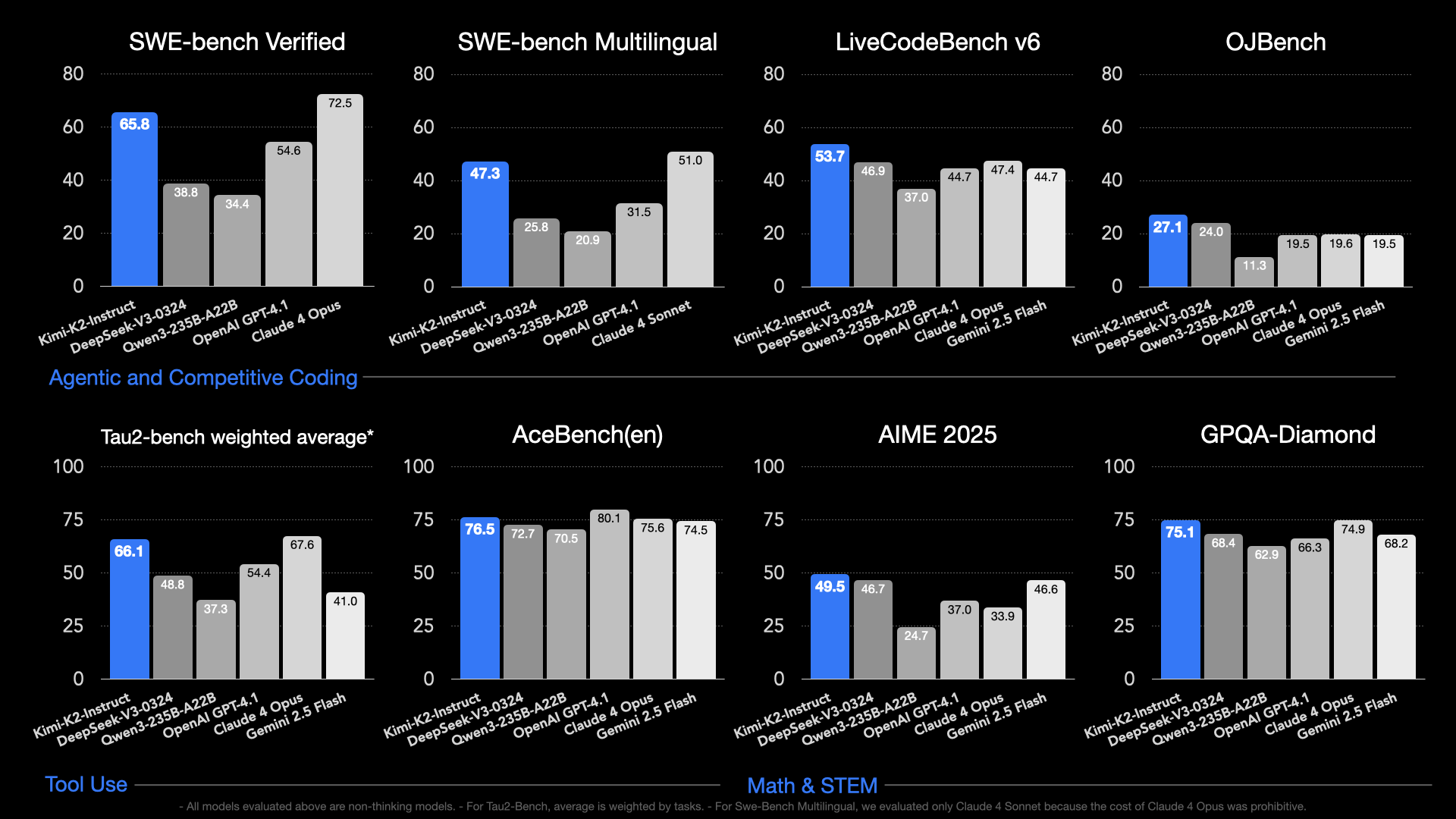 Figure 5: Kimi-K2 performance benchmarks compared to other leading AI models
🛠️ OpenCode: The Developer-Centric CLI
OpenCode is a Go-based CLI application that brings AI assistance directly to your terminal, offering:
Direct Terminal Integration: No need to switch between applications
Multiple Model Support: Works with various AI providers through unified API
Lightweight: Fast startup and minimal resource usage
Customizable: Flexible configuration for different workflows
💡 The Synergy
When combined, you get:
Enterprise-grade AI performance at open-source costs
Seamless development workflow without context switching
Massive cost savings compared to premium AI coding assistants
Full control over your development environment
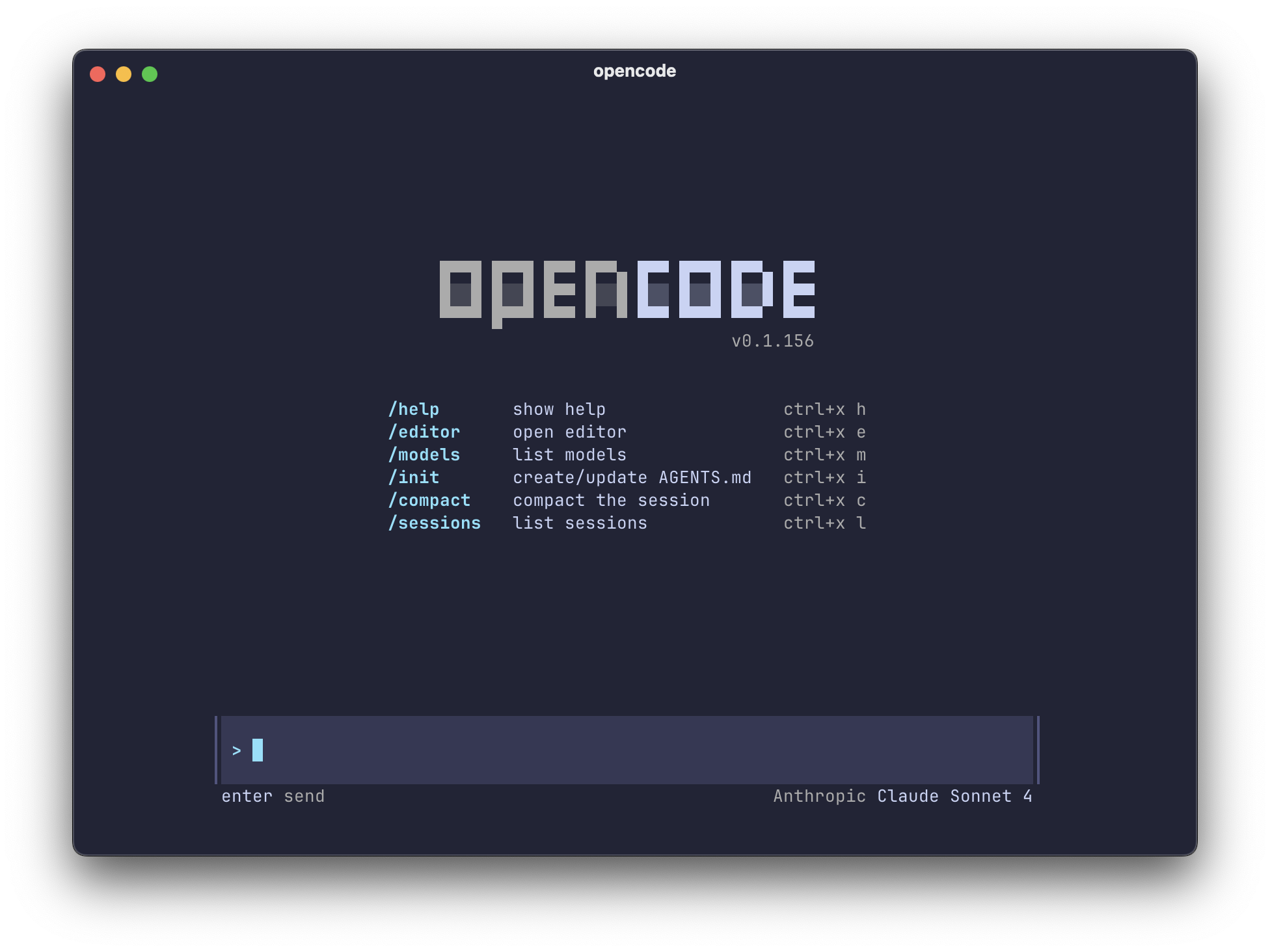 Figure 6: Complete workflow showing how OpenCode integrates with your development process
Prerequisites
Before starting, ensure you have:
A computer with internet access
Basic command-line knowledge
A credit card or payment method for OpenRouter credits
Step 1: Setting Up OpenRouter Credits
OpenRouter serves as the gateway to access Kimi-K2 and other advanced AI models through a unified API.
1.1 Create OpenRouter Account
Visit OpenRouter.ai
Click "Sign Up" and create your account
Verify your email address
1.2 Add Credits to Your Account
Navigate to Credits Page:
You'll see your current credit balance and usage statistics
Understanding OpenRouter Credits:
Credits are deposits used for LLM inference
Each model has different pricing per million tokens
5.5% fee ($0.80 minimum) for credit purchases
Crypto payments have a 5% fee
Purchase Credits:
Click "Add Credits" button
Choose your amount (recommended: start with $10-20 for testing)
Select payment method:
Credit Card: Instant processing
Cryptocurrency: 5% fee, ~15 min processing for amounts >$500
Complete the payment
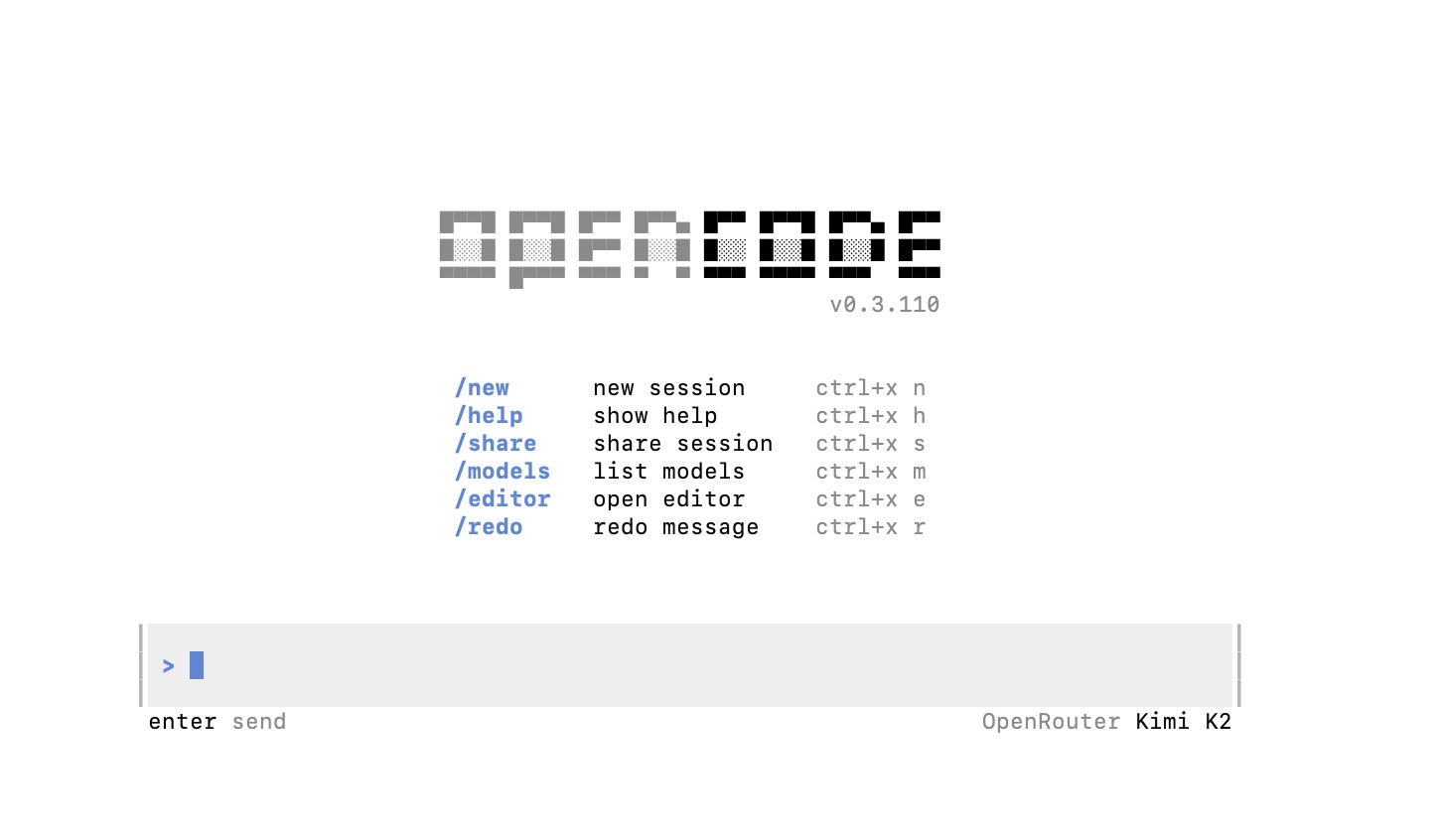 Figure 1: OpenRouter credits dashboard - easy credit management interface
Free Model Benefits:
Less than 10 credits: 50 free model requests/day
10+ credits: 1,000 free model requests/day
1.3 Monitor Your Usage
Check Credits via API:
curl -H "Authorization: Bearer $OPENROUTER_API_KEY" \
  https://openrouter.ai/api/v1/credits
Web Dashboard:
Real-time usage tracking
Model-specific cost breakdown
Historical usage patterns
Step 2: Creating Your API Key
2.1 Generate API Key
Navigate to OpenRouter API Keys
Click "Create Key"
Give your key a descriptive name (e.g., "OpenCode Development")
Set optional restrictions:
Rate limits: Control usage to prevent unexpected costs
Model access: Restrict to specific models if needed
Referrer restrictions: Limit to specific domains/IPs
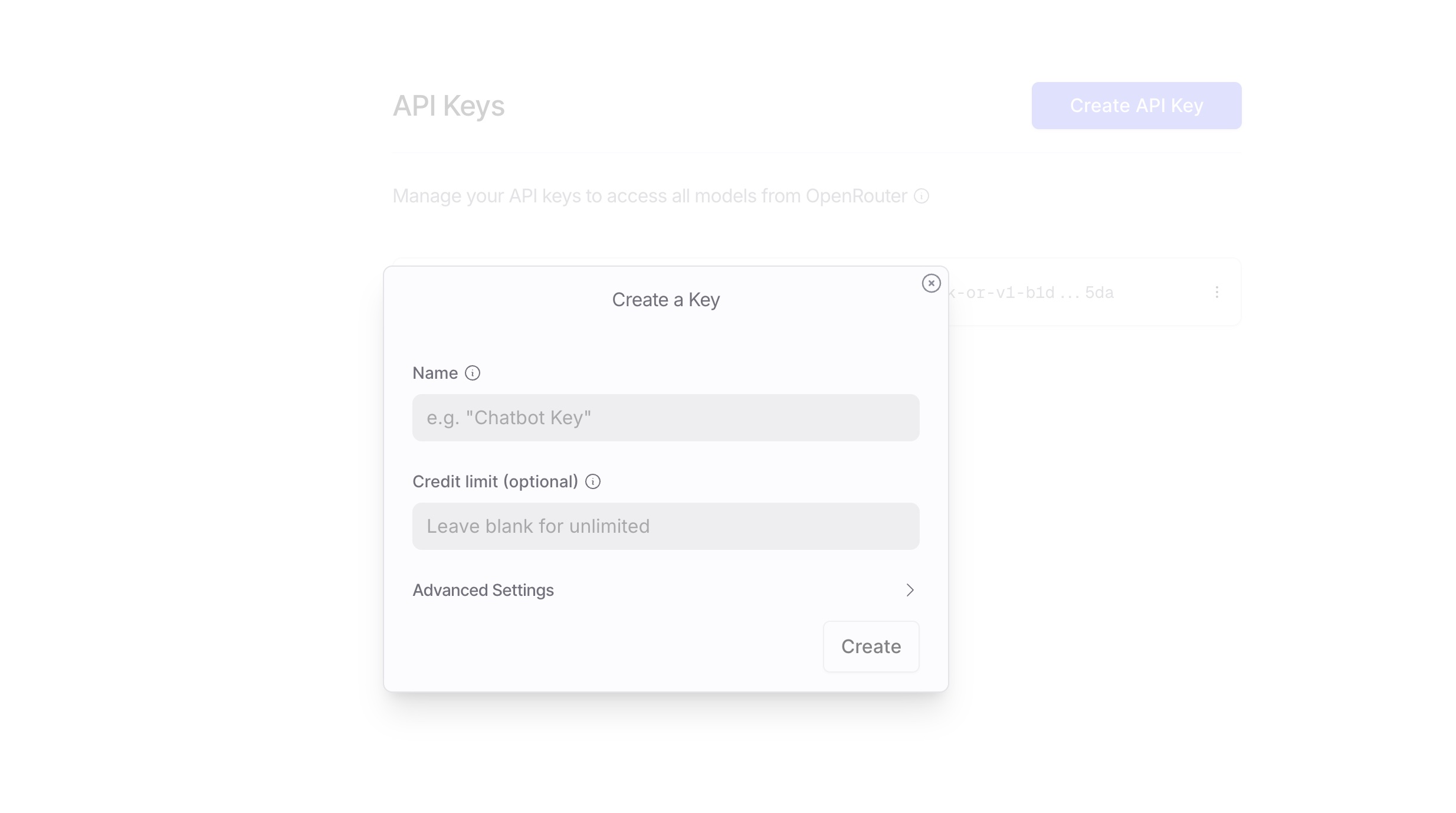 Figure 2: Creating a new API key with proper security settings
2.2 Secure Your API Key
Copy and Store Safely:
# Example API key format
sk-or-v1-xxxxxxxxxxxxxxxxxxxxxxxxxxxxxxxx
Security Best Practices:
Never commit API keys to version control
Use environment variables
Rotate keys regularly
Monitor usage for suspicious activity
2.3 Test Your API Key
curl -H "Authorization: Bearer YOUR_API_KEY" \
  -H "Content-Type: application/json" \
  -d '{
    "model": "moonshot/kimi-k2-instruct",
    "messages": [{"role": "user", "content": "Hello!"}]
  }' \
  https://openrouter.ai/api/v1/chat/completions
Step 3: Installing OpenCode
3.1 Download OpenCode
For macOS:
# Using Homebrew (recommended)
brew install opencode

# Or download directly
curl -L https://github.com/opencode/releases/latest/download/opencode-darwin-arm64.tar.gz | tar xz
sudo mv opencode /usr/local/bin/
For Linux:
# Download and install
curl -L https://github.com/opencode/releases/latest/download/opencode-linux-amd64.tar.gz | tar xz
sudo mv opencode /usr/local/bin/

# Make executable
chmod +x /usr/local/bin/opencode
For Windows:
# Using Chocolatey
choco install opencode

# Or download manually from GitHub releases
3.2 Verify Installation
opencode --version
# Should output version information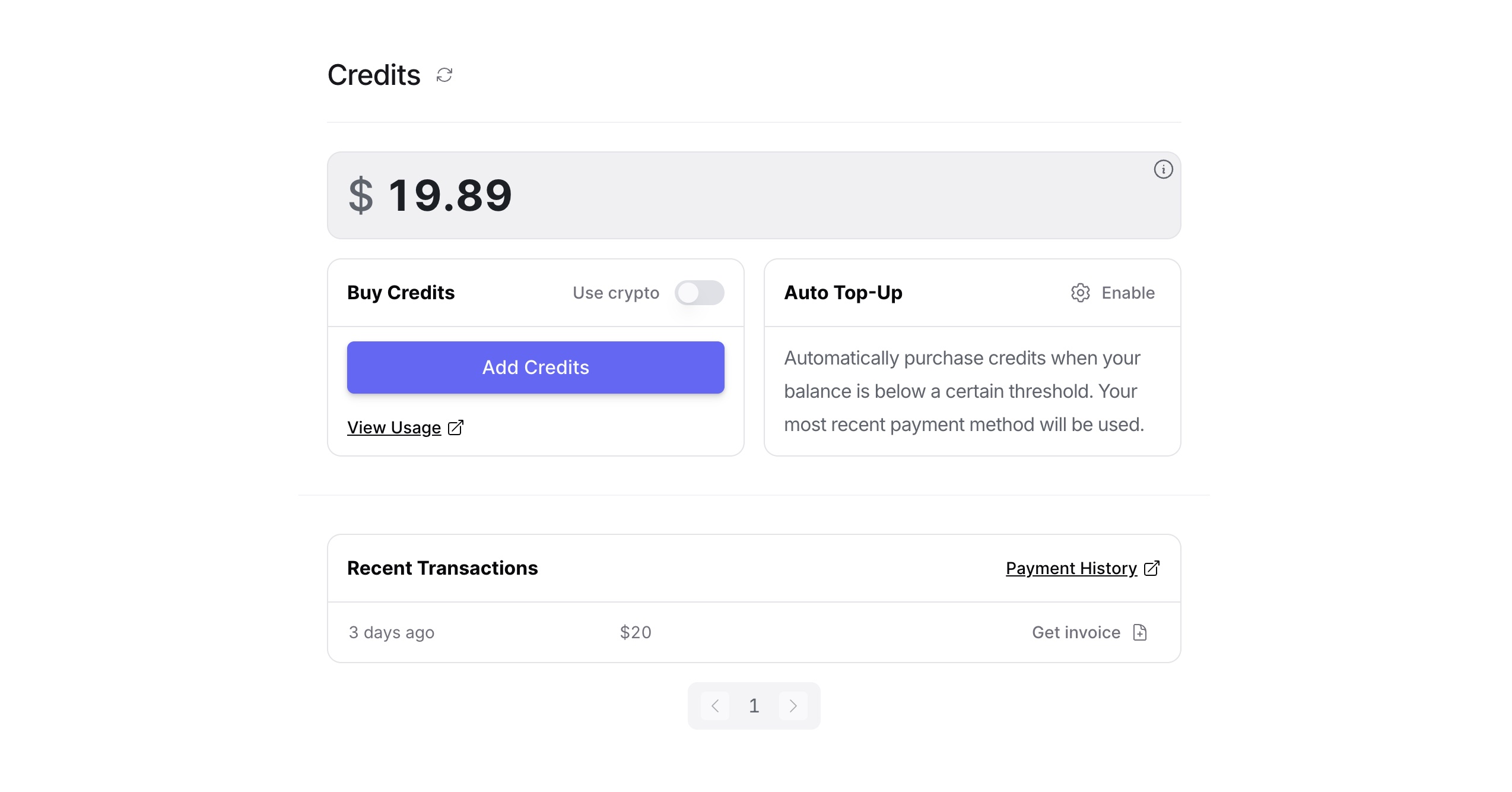 Figure 3: OpenCode CLI showing version and basic command information
3.3 Initial Configuration
# Create config directory
mkdir -p ~/.config/opencode

# Initialize configuration
opencode init
Step 4: Configuring OpenCode with Kimi-K2
4.1 Create Configuration File
Create ~/.config/opencode/config.yaml:
# OpenCode Configuration for Kimi-K2
provider: "openrouter"
api_key: "${OPENROUTER_API_KEY}"
base_url: "https://openrouter.ai/api/v1"

# Model Configuration
model: "moonshot/kimi-k2-instruct"
max_tokens: 4096
temperature: 0.1
top_p: 0.9

# OpenCode Specific Settings
context_window: 128000
streaming: true
auto_save: true

# Cost Control
max_cost_per_request: 0.50
daily_cost_limit: 10.00

# UI Preferences
theme: "dark"
syntax_highlighting: true
line_numbers: true

# Advanced Features
enable_code_review: true
auto_commit_messages: true
enable_refactoring_suggestions: true
4.2 Set Environment Variables
Add to your shell profile (~/.bashrc, ~/.zshrc, etc.):
# OpenRouter Configuration
export OPENROUTER_API_KEY="your-api-key-here"
export OPENCODE_CONFIG_PATH="$HOME/.config/opencode/config.yaml"

# Optional: Set model preferences
export OPENCODE_MODEL="moonshot/kimi-k2-instruct"
export OPENCODE_MAX_TOKENS=4096
Reload your shell:
source ~/.zshrc # or ~/.bashrc4.3 Test Configuration
# Test basic functionality
opencode test

# Interactive chat mode
opencode chat

# Quick code assistance
opencode ask "How do I implement a binary search in Python?"
Step 5: Advanced Usage Patterns
5.1 Code Review and Analysis
Analyze Existing Code:
# Review a specific file
opencode review src/components/UserDashboard.tsx

# Review entire project
opencode review --recursive .

# Security audit
opencode audit --security-focused src/
Example Output:
🔍 Code Review Results for UserDashboard.tsx

✅ Strengths:
- Proper TypeScript typing
- Good component structure
- Accessible JSX elements

⚠️  Suggestions:
- Consider memoizing expensive calculations (line 45)
- Add error boundaries for async operations
- Implement loading states for better UX

🚨 Issues:
- Potential XSS vulnerability in user input handling (line 78)
- Missing prop validation for critical props
5.2 Automated Code Generation
Generate Components:
# Generate React component
opencode generate component UserProfile --props="name:string,email:string,avatar:string"

# Generate API endpoint
opencode generate api users --crud --auth-required

# Generate database model
opencode generate model User --fields="name,email,created_at"
Generate Tests:
# Generate unit tests for existing code
opencode generate tests src/utils/validation.js

# Generate integration tests
opencode generate integration-tests src/api/
5.3 Intelligent Refactoring
Automated Refactoring:
# Modernize legacy code
opencode refactor --modernize src/legacy/

# Extract reusable components
opencode refactor --extract-components src/pages/

# Optimize performance
opencode refactor --performance src/components/
Custom Refactoring Rules:
# ~/.config/opencode/refactor-rules.yaml
rules:
  - name: "Convert to TypeScript"
    pattern: "*.js"
    action: "typescript_migration"

  - name: "Extract Constants"
    pattern: "magic_numbers"
    action: "extract_to_constants"

  - name: "Optimize Imports"
    pattern: "unused_imports"
    action: "remove_unused"
5.4 Context-Aware Assistance
Project-Specific Context:
# Index your project for better context
opencode index --deep-scan

# Ask questions about your codebase
opencode ask "Where is the user authentication logic implemented?"

# Get architectural suggestions
opencode architect "How should I structure a new microservice for payments?"
5.5 Git Integration
Smart Commit Messages:
# Auto-generate commit messages
git add .
opencode commit --auto-message

# Review before committing
opencode commit --interactive
Branch Analysis:
# Analyze changes in current branch
opencode diff --analyze

# Get merge conflict resolution suggestions
opencode resolve-conflicts
Step 6: Cost Optimization and Monitoring
6.1 Monitor Usage and Costs
Daily Usage Check:
# Check today's usage
opencode usage --today

# Detailed cost breakdown
opencode costs --detailed --last-7-days
Set Up Alerts:
# ~/.config/opencode/alerts.yaml
cost_alerts:
  daily_limit: 5.00
  weekly_limit: 25.00
  monthly_limit: 100.00

usage_alerts:
  requests_per_hour: 100
  tokens_per_day: 50000

notification_methods:
  - email: your-email@example.com
  - webhook: https://your-webhook-url.com/alerts
6.2 Optimize Model Usage
Smart Model Selection:
# ~/.config/opencode/model-routing.yaml
routing_rules:
  - task_type: "simple_questions"
    model: "gpt-3.5-turbo"  # Cheaper for basic tasks

  - task_type: "code_review"
    model: "moonshot/kimi-k2-instruct"  # Best for complex analysis

  - task_type: "code_generation"
    model: "moonshot/kimi-k2-instruct"  # Superior coding capabilities
Context Management:
# Optimize context usage
opencode config set context_optimization true

# Use smart context truncation
opencode config set smart_truncation true
6.3 Batch Operations
Process Multiple Files:
# Batch code review
opencode batch-review src/**/*.ts --parallel=4

# Batch refactoring
opencode batch-refactor --pattern="*.js" --rule="modernize"
Step 7: Integration with Development Workflow
7.1 IDE Integration
VS Code Extension:
# Install OpenCode VS Code extension
code --install-extension opencode.vscode-opencode
Vim/Neovim Plugin:
" Add to your .vimrc or init.vim
Plug 'opencode/opencode.vim'
7.2 CI/CD Integration
GitHub Actions:
# .github/workflows/opencode-review.yml
name: OpenCode Review
on: [pull_request]

jobs:
  code-review:
    runs-on: ubuntu-latest
    steps:
      - uses: actions/checkout@v2
      - name: OpenCode Review
        uses: opencode/github-action@v1
        with:
          api-key: ${{ secrets.OPENROUTER_API_KEY }}
          review-type: 'comprehensive'
          comment-on-pr: true
Pre-commit Hooks:
# Install pre-commit hooks
opencode install-hooks

# Configure hooks
cat > .pre-commit-config.yaml << EOF
repos:
  - repo: local
    hooks:
      - id: opencode-review
        name: OpenCode Review
        entry: opencode review --staged
        language: system
        pass_filenames: false
EOF
7.3 Team Collaboration
Shared Configuration:
# team-config.yaml (version controlled)
team:
  coding_standards:
    typescript: strict
    react: hooks_preferred
    testing: jest

  review_guidelines:
    security_scan: always
    performance_check: true
    accessibility_check: true

  models:
    code_review: "moonshot/kimi-k2-instruct"
    quick_help: "gpt-3.5-turbo"
Step 8: Advanced Tips and Best Practices
8.1 Prompt Engineering for Better Results
Effective Prompts:
# Instead of: "Fix this code"
# Use: "Review this React component for performance issues and suggest specific optimizations"

# Instead of: "Add comments"
# Use: "Add JSDoc comments explaining the business logic and API contracts"

# Instead of: "Make it better"
# Use: "Refactor this function to improve readability while maintaining performance"
Context-Rich Requests:
opencode ask "In our e-commerce app using Next.js 14 and Stripe,
how should I implement server-side checkout validation
that works with our existing user authentication system?"
8.2 Custom Commands and Aliases
Create Custom Commands:
# ~/.config/opencode/custom-commands.yaml
commands:
  quick-fix:
    description: "Quick fix for common issues"
    command: "opencode review --fix-suggestions --auto-apply-safe"

  deploy-check:
    description: "Pre-deployment checks"
    command: "opencode audit --security --performance --bundle-size"

  doc-gen:
    description: "Generate documentation"
    command: "opencode generate docs --include-examples --format=markdown"
Shell Aliases:
# Add to ~/.zshrc or ~/.bashrc
alias ocr="opencode review"
alias ocg="opencode generate"
alias oca="opencode ask"
alias occ="opencode commit --auto-message"
alias ocf="opencode fix --interactive"
8.3 Performance Optimization
Local Caching:
# ~/.config/opencode/cache.yaml
cache:
  enabled: true
  ttl: 3600  # 1 hour
  max_size: "500MB"

  strategies:
    code_analysis: "aggressive"  # Cache analysis results
    model_responses: "smart"     # Cache similar queries
    file_context: "minimal"      # Don't cache file contents
Request Optimization:
# ~/.config/opencode/optimization.yaml
optimization:
  batch_requests: true
  compress_context: true
  smart_chunking: true

  context_limits:
    max_files: 10
    max_lines_per_file: 500
    priority_files: ["*.ts", "*.js", "*.py"]
Troubleshooting Common Issues
Issue 1: API Key Authentication Errors
Problem: 401 Unauthorized or Invalid API Key
Solutions:
# Verify API key format
echo $OPENROUTER_API_KEY | grep "sk-or-v1-"

# Test API key directly
curl -H "Authorization: Bearer $OPENROUTER_API_KEY" \
  https://openrouter.ai/api/v1/models

# Regenerate key if needed
opencode config reset-api-key
Issue 2: High Costs/Unexpected Usage
Problem: Bills higher than expected
Solutions:
# Check recent usage
opencode usage --detailed --last-24h

# Set strict limits
opencode config set daily_cost_limit 5.00
opencode config set request_rate_limit 50

# Use cheaper models for simple tasks
opencode config set fallback_model "gpt-3.5-turbo"
Issue 3: Poor Code Suggestions
Problem: Generic or irrelevant suggestions
Solutions:
# Improve context
opencode index --deep-scan --include-docs

# Use more specific prompts
opencode ask "In this Next.js TypeScript project with Tailwind CSS..."

# Provide more context files
opencode review --include-related-files
Issue 4: Slow Response Times
Problem: Long wait times for responses
Solutions:
# Enable streaming
opencode config set streaming true

# Reduce context size
opencode config set max_context_files 5

# Use local caching
opencode config set cache_enabled true
Security and Privacy Considerations
Data Privacy
What Gets Sent:
Code snippets you explicitly request analysis for
File contents in your current context
Project structure information (if indexed)
What Doesn't Get Sent:
Your entire codebase (unless explicitly requested)
Environment variables or secrets
Git history or commit messages (unless using git integration)
Best Practices
Code Sanitization:
# Review what will be sent before analysis
opencode preview-context

# Exclude sensitive files
echo "*.env*\n*.key\n*.pem\nsecrets/\n" >> ~/.config/opencode/.ignore

# Use project-specific configs for different security levels
opencode config create --profile=open-source
opencode config create --profile=enterprise --enhanced-privacy
Access Control:
# Rotate API keys regularly
opencode rotate-key --schedule=monthly

# Monitor access logs
opencode logs --security-events

# Set up anomaly detection
opencode config set detect_anomalies true
Staying Updated
# Enable auto-updates
opencode config set auto_update true

# Check for updates manually
opencode update

# Join beta program
opencode beta join
Conclusion
The combination of Kimi-K2 CLI and OpenCode represents a paradigm shift in AI-assisted development. By following this comprehensive tutorial, you've set up a powerful, cost-effective, and highly customizable development environment that can significantly boost your productivity.
Key Benefits Recap
✅ Cost Efficiency: Up to 80% savings compared to premium AI coding assistants ✅ Performance: Enterprise-grade model performance with 128K context window ✅ Flexibility: Full control over your development workflow ✅ Privacy: Keep sensitive code local with optional cloud assistance ✅ Scalability: Grows with your team and project complexity
Next Steps
Start Small: Begin with simple code reviews and Q&A
Expand Gradually: Add more advanced features as you get comfortable
Customize: Tailor the configuration to your specific workflow
Share: Help your team adopt these powerful tools
Contribute: Join the open-source community and contribute improvements
Resources and Community
Documentation: OpenCode Docs
Community: Discord Server
GitHub: OpenCode Repository
Kimi-K2: Official Repository
The future of development is AI-assisted, and with Kimi-K2 + OpenCode, you're at the forefront of this revolution. Happy coding! 🚀